Monday, October 27, 2014

Iterator methods of Array in JavaScript

In this post I will summarize iterator methods of Array in JavaScript. Programmers often forget that these useful functions are part of the language and mindlessly connect third-party libraries.

Iterator methods apply a function to each element of an array, either returning a value, a set of values, or a new array after applying the function to each element of an array.

Non Array generating iterator methods

forEach()
The forEach() method takes a function as an argument and applies the called function to each element of an array.

function square(num) {
print(num, num * num);
}
var nums = [1,2,3,4,5,6,7,8,9,10];
nums.forEach(square);

every()
The every() method applies a Boolean function to an array and returns true if the function can return true for every element in the array.

function isEven(num) {
return num % 2 == 0;
}
var nums = [2,4,6,8,10];
var even = nums.every(isEven);
if (even) {
print("all numbers are even");
}
else {
print("not all numbers are even");
}

some()
The some() method will take a Boolean function and return true if at least one of the elements in the array satisfies the condition of the Boolean function.

function isEven(num) {
return num % 2 == 0;
}
var nums = [1,2,3,4,5];
var someEven = nums.some(isEven);
if (someEven) {
print("some numbers are even");
}
else {
print("no numbers are even");
}

reduce()
The reduce() method applies a function against an accumulator and each value of the array (from left-to-right) has to reduce it to a single value.

function add(previousValue, currentValue) {
return previousValue + currentValue;
}
var nums = [1,2,3,4,5,6,7,8,9,10];
var sum = nums.reduce(add);
print(sum); // displays 55

reduceRight()
The reduceRight() method which works similarly to reduce(), only working from the righthand side of the array to the left, instead of from left to right.

function concat(accumulatedString, item) {
return accumulatedString + item;
}
var words = ["the ", "quick ","brown ", "fox "];
var sentence = words.reduceRight(concat);
print(sentence); // displays "fox brown quick the"


Iterator methods that return a new Array

map()
The map() method works like the forEach() method, applying a function to each element of an array. The difference between the two methods is that map() returns a new array with the results of the function application.

var numbers = [1, 4, 9];
var doubles = numbers.map(function(num) {
return num * 2;
});
// doubles is now [2, 8, 18]. numbers is still [1, 4, 9]

filter()
The filter() method works similarly to every(), but instead of returning true if all
the elements of an array satisfy a Boolean function, the method returns a new array
consisting of those elements that satisfy the Boolean function.

function isBigEnough(element) {
 return element >= 10;
}
var filtered = [12, 5, 8, 130, 44].filter(isBigEnough);
// filtered is [12, 130, 44]

Tuesday, September 30, 2014

Passing Environment Variables

In this blog I show you how to set ssh and sudoers for passing environment variables on Linux machines. We use it to set the name of the administrator who commits the changes to the repository (see gitkeeper).


Example


Client side

~/.bashrc
...
export GIT_AUTHOR_NAME="Tomas Jurman"
...

~/.ssh/config
...
SendEnv GIT_*
...


Server side

/etc/SSHD_HOME/sshd_config
...
AcceptEnv GIT_*
...

/etc/sudoers
...
Defaults        env_reset
Defaults        env_keep +="GIT_AUTHOR_NAME"
...

Sunday, August 31, 2014

Responsive images

In this post I summarize the techniques used for a responsive images. None of the existing techniques are not perfect. On the client side was released a new specification which combines together all the previous techniques.On the server side are arising new techniques and solutions of third parties.


Client side
  • srcset attribute
  • src-N attribute
  • picture element


Server side


Curent state (september 2014)

Example

Browser support for Picture element is weak, but you can use the polyfill. Picture Fill has recently been updated to 2.0. and you can use the actual syntax.


Grunt Responsive Images
If you are using Grunt certainly appreciate grunt-responsive-images plugin.

Tuesday, July 8, 2014

Git - post commit hook

Git Hooks is powerful tool for customizing Git. In this post we created custom post-commit hook, that send email after every new commit.


Client side hooks

  • pre-commit is called before a commit occurs.
  • prepare-commit-msg lets you edit the default message before the editor is fired up; it's useful in automated commits to add some context.
  • commit-msg is the last step where you can interrupt a commit.
  • post-commit is executed after a commit is completed, for notification purposes.
  • post-checkout you can use it to set up your working directory properly for your project environment.
  • post-merge you can use it to restore data in the working tree that Git can’t track, such as permissions data.


Server side hooks

  • pre-receive can be used to check and interrupt the receival of the new commits, if it is the case.
  • post-receive notifies that commits have been published on this repository.
  • update is a version of pre-receive that is run once per each different branch.
  • post-update is a notification activated after all references have been updated; the default hook updates some metadata to let the repository be published via HTTP.


For detailed description and other not mentioned hooks go to git documentation.


There are already published some post-receive hook for sending email after push new data to server (1, 2, 3).  


Send emails after commit on the client side is not typical use case. On Linux servers we let store the /etc in a Git. After changing the configuration we commit changes to ( for the server local ) git repository. After every configuration changing we want to notify the other administrators. We use the following post-commit hook:


After copy a new post-commit file to .git/hooks don’t remember reinit git:
#git init

Wednesday, June 11, 2014

Grunt - useful pig at your service.

As web developer you need to be efficient. You need automated work that can be. For instance: run tests, copy, splice, compile, minify files, deploy apps to remote servers and more and more. All these boring work is appropriate to leave for the Grunt.

The one dependencies is NodeJS, but you don't need understand anything about NodeJS. Grunt is here for any web projects.

Grunt has a useful documentation. All examples below are only quick samples.

Common and useful plugin


There are thousand of others plugins on Grunt plugin repository. The configuration parameters of plugins you can be found in the corresponding web page.

Do not worry, it's just your JavaScript

You can use your variables, methods. It is your friend JavaScript.

srcFiles: ['src/namespace.js', 'src/templates/templates.js'],
concat : {
 dist: {
  files: {
   './build/<%= pkg.name %>.js': "<%= srcFiles %>",
   './example/js/<%= pkg.name %>.js': "<%= srcFiles %>"
   },
 },      
}

Read from config

module.exports = function(grunt) {

grunt.initConfig({ bar: { foo: 42 } }); grunt.registerTask('myTask', function() { var bar = grunt.config.get('bar'); //nothing here... }); };

Task aliasing

grunt.registerTask('deploy', ['build', 'test', 'upload']);

Custom task

Create custom task is very straightforward. It is common function.
module.exports = function(grunt) {
     grunt.registerTask('myTask', function() {
       //nothing here...   
     });
};

Runtime options

module.exports = function(grunt) {
          console.log('bar is: ' + grunt.option('bar'));
          grunt.registerTask('myTask', function() {
          //nothing here...
     });
};

$ grunt myTask --bar
bar is: true
Running "myTask" task

$ grunt myTask --bar=42
bar is: 42
Running "myTask" task

Multi tasks

grunt.initConfig({
     compile: {
          target1: {
               source: './src/app.js',
               dest: '../build/app.js'
          },
          target2: {
               source: './src/main.js',
               dest: '../build/main.js'
          }
     }
});

$ grunt compile:target1
$ grunt compile:target2

Multiple sets of source files

target1: {
     files: [
          { src: 'src/{a,b,c}.js', dest: 'dest/abc.js' },
          { src: 'src/{x,y,z}.js', dest: 'dest/def.js' } 
     ]
}

Environment specific tasks

var env = grunt.option('env') || 'dev';

if(env === 'prod') {
grunt.registerTask('scripts', ['coffee', 'uglify']);
grunt.registerTask('styles', ['stylus', 'cssmin']);
grunt.registerTask('views', ['jade', 'htmlmin']);
} else {
grunt.registerTask('scripts', ['coffee']);
grunt.registerTask('styles', ['stylus']);
grunt.registerTask('views', ['jade']);
}

grunt.registerTask('default', ['scripts','styles','views']);

Read external file

credentials: grunt.file.readJSON('credentials.json'), ... username: '<%= credentials.username %>', password: '<%= credentials.password %>',

Utils

if(grunt.file.exists('.jshintrc')) { grunt.task.run('jshint'); }

Wednesday, May 14, 2014

Setting environment variables in Linux

In this post I take a closer look at setting environment variables in Linux. For this purpose, it is common to use the /etc/profile for the system, or ~/profile for the user settings.

Setting environment variables from ordinary bash script is rarely used and that is why this behavior may be for someone surprising.

Print your environment variables
$ env

Environment variables can be set for:
  • System
  • User
  • Current bash process and sub-processes

System

Interactive login shell first reads and executes commands from the file /etc/profile, if that file exists.

Some Linux systems now use a directory /etc/profile.d/; any .sh files in there will be sourced by /etc/profile.

User

After reading /etc/profile, it looks for ~/.bash_profile, ~/.bash_login, and  ~/.profile,  in  that order,  and  reads  and  executes  commands  from the first one that exists and is readable.

Process and subprocesses

$ export DB_URL=mongodb://localhost:27017/testaBD

It affect current bash process and subprocesses.

When you export variables in a bash script:

  1. It opens a new shell.
  2. It executes commands.
  3. It copies the output back to your current shell.
  4. It closes the new shell.

Any changes to environment will take effect only in the new shell and will be lost once the new shell is closed.

It's important to note that exporting a variable doesn't make it available to parent process. That is, specifying and exporting a variable in a spawned process doesn't make it available in the process that launched it.

Source a bash script

$ source script.sh

Sourcing the script does not create a new shell. All commands are run in the current shell and changes to the environment take effect in the current shell. When you source the script you are typing the commands in your current shell. Any changes to the environment will take effect and stay in your current shell.

Wednesday, April 23, 2014

Newsletter service on Google Apps Script

This blog post was inspired by great ebook Google Apps Script for Beginners.

Google Apps Script (GAS) is tool for manipulating Google Documents, SpreadSheets, Calendar, Gmail, Forms, Sites, …  and automating your workflow. GAS offers nice and powerful API, detailed documentation. In this post I am going to describe how to create Newsletter service on GAS.


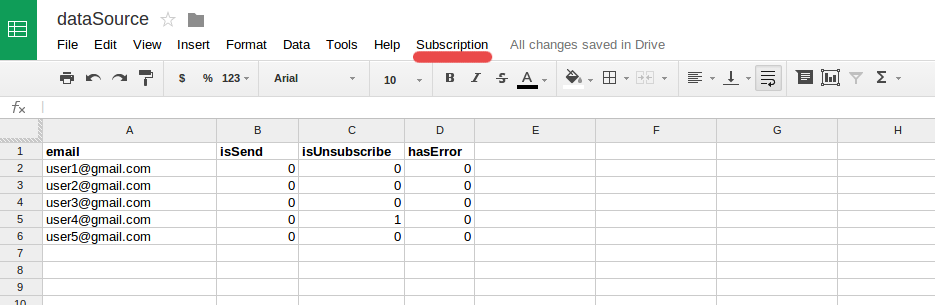
Newsletter service - as I called it - uses Spreadsheet as storage for subscriber emails, MailApp for sending newsletter, HtmlTemplate for output. And it is deployed as web app.


Use cases:
  • Subscribe new email
  • Unsubscribe
  • Send newsletter


The benefit of using Newsletter service is that you can connect it for many of your projects. Every project uses own sheet.  All is in one place - in your Google Drive. It is not need to recreate newsletter service on every of your webpages.


Data source

  • isSend - is set to 1 when newsletter has been send.
  • isUnsubscribe - is set to 1 when user clicks to unsubscribe link
  • hasError - is set to 1 when an exception occurred during sending email. Google does not find "Delivery Failure" during sending emails. I saw an obscure way how to someone solved it. :)


Send newsletter

It uses HtmlTemplate. HTML output on GAS is pain. GAS uses Caja Compiler. There are lots of restrictions.


For quality output use email templates:


By default Caja removes HTTP headers from your template, but fortunately this does not apply when you send an email.


It is known that Google has defined daily email quota.


Subscribe

New registration of subscriber is designed as HTTP POST request to Newsletter service. The form must contain the required parameters. Request creates a new record in the sheet.


Unsubscribe

Unsubscribe url is generated automatically at the end of newsletter template.

Final evaluation

This solution has some advantages but disadvantages and limitations too. It is not probably satisfy for big company who wants to send thousands of emails per day.


It might interest you


Recommendation

I was inspired by a great book Google Apps Script for Beginners

The book contains:
  • Spreadsheet automation
  • Manipulate Forms
  • Managing Email Account
  • Script in text document
  • Standalone Web application